

Account management for data provider representatives
The e. Statistics system can only be used by a registered data provider representative. Below is information on how a legal entity representative in the e. Statistics system can:
1. Create a user login account;
2. Recover his/her login password;
3. Submit a representation request for a new respondent representation;
4. Confirm the respondent representation account;
5. Stop his/her representation for the data provider, adjust his/her account details
In order to start representing a new respondent in the e.Statistics system, you need a representation account.
If you are the head of a legal entity, a representation account is created for you automatically, you can confirm it by logging in to the e. Statistics system via the Electronic Government Gateway (see instructions: “How to log in to the e. Statistics system via the Electronic Government Gateway” and “Account Management Instructions for HEADS and Representatives with ADMINISTRATOR RIGHTS”).
1. Creating a user login account
All users of the e. Statistics system require a user login account. In order to create one, you must log in to the e. Statistics system via the Electronic Government Gateway (see the instructions: “How to log in to the e. Statistics system via the Electronic Government Gateway).
Familiarize yourself with the Rules for the Electronic Submission of Statistical and Administrative Data and the Preparation and Transmission of Data in the e. Statistics System and indicate that you agree to be bound by them (Figure 1).
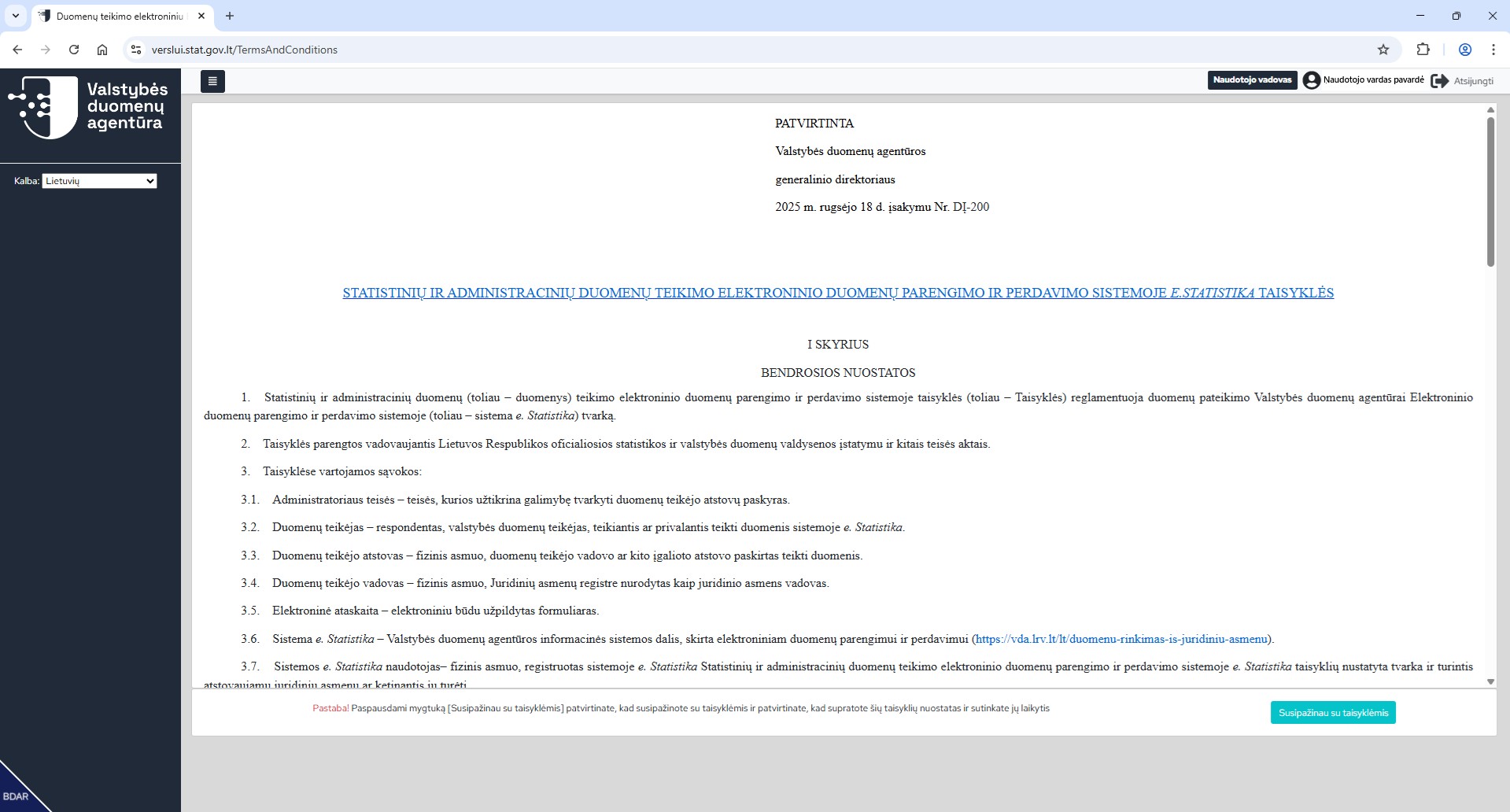
Figure 1. System e. Statistics rules confirmation window
After clicking the [I have read the rules] button, the user login account creation window opens (Figure 2):
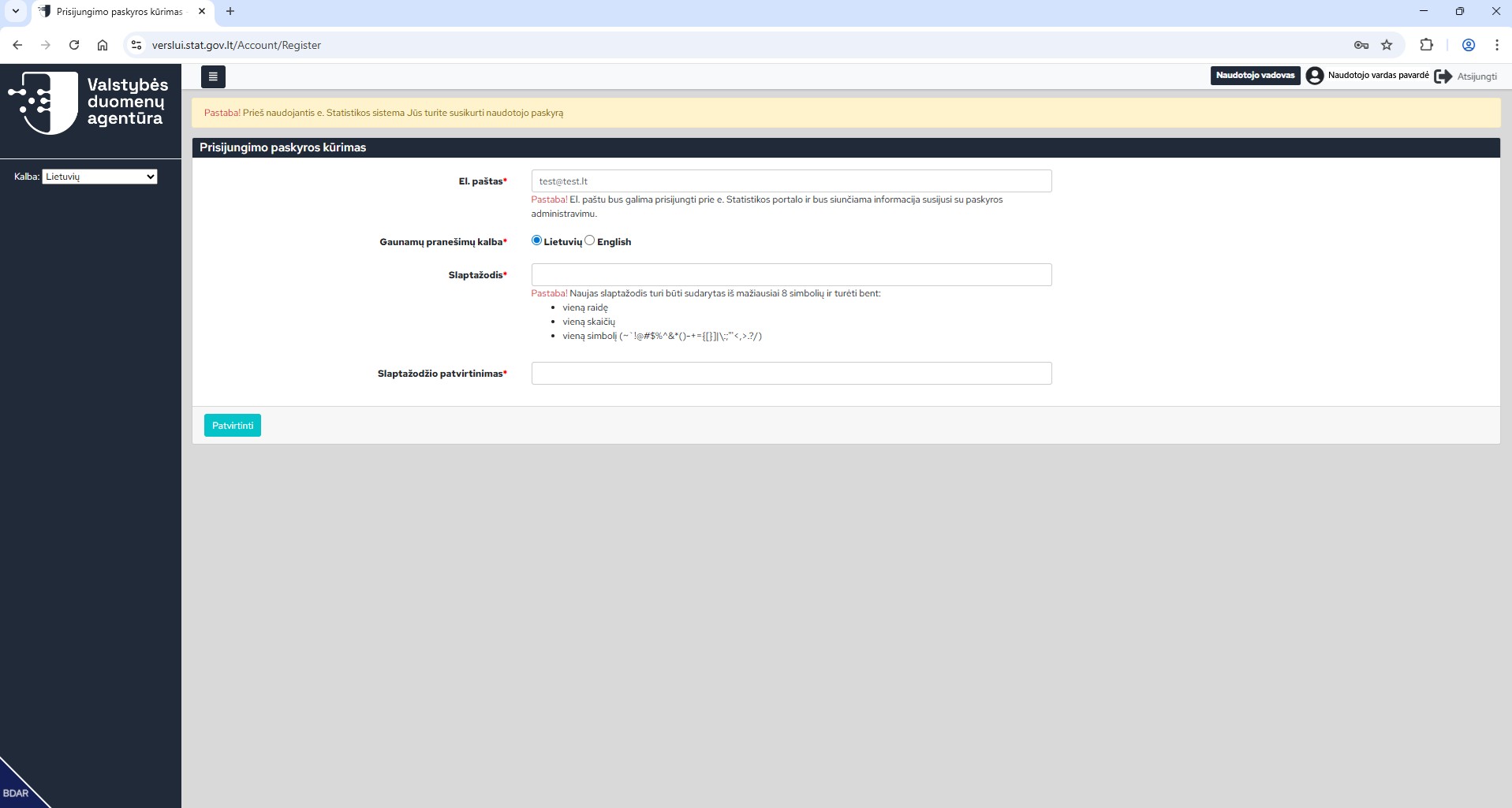
Figure 2. System e. Statistics user login account creation window
The required information must be entered in the user login account creation window:
- Email – enter your email address (the system automatically loads the user’s email address, which was received from the State Information Resources Interoperability Platform (SIRIP).
- Password – enter a new password (the password must consist of at least 8 characters and contain at least one letter, at least one number and at least one special character (~`!@#$%^&*()-+={[}]|\:;"'<,>.?/).
- Password confirmation – repeat the new password.
After entering the information, press the [Confirm] button.
An automatic message with a link to confirm the login account is sent to the user’s email address, which is valid for 30 minutes from the time of sending.
Note: In the future, you will be able to connect to the e. Statistics system both via the Electronic Government Gateway and using the login account email address and the created password.
2. What to do if you forgot your login password?
If you have forgotten your login account password, use the password recovery function “Forgot your password?” (Figure 3).
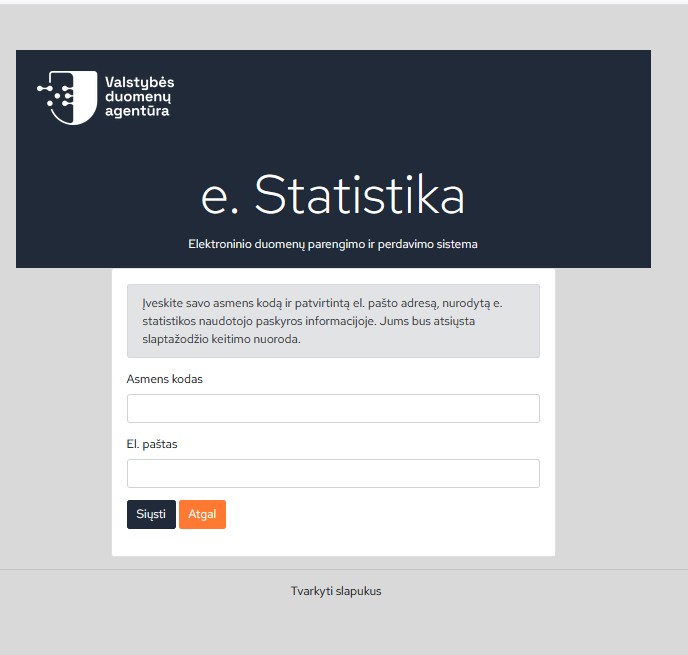
Figure 3. Password recovery window
In the password recovery window, enter the required data and click the [Send] button.
- If the entered data is found in the system, a password change link is sent to the user’s email. Clicking on the received link a window for entering a new password opens.
- If the data entered is not found in the system, an error message “Incorrectly entered user data or user does not exist in the system” is displayed.
3. Submitting a request for representation
An accountant or other representative of the data provider can initiate the creation of a representation account by submitting a representation request.
Log in to the system e. Statistics in one of the following ways:
- log in through the Electronic Government Gate by entering the data required for identification;
- log in with a password.
You can find the window for submitting a new representation request (Fig. 4):
1. Clicking [Data Providers]-> [Data Provider Representation Requests] in the menu list
2. By clicking [+ Submit a new request]

Figure 4. New data provider representation request
In the window that opens (Figure 5), some of your personal information fields will be filled in with your login account information.
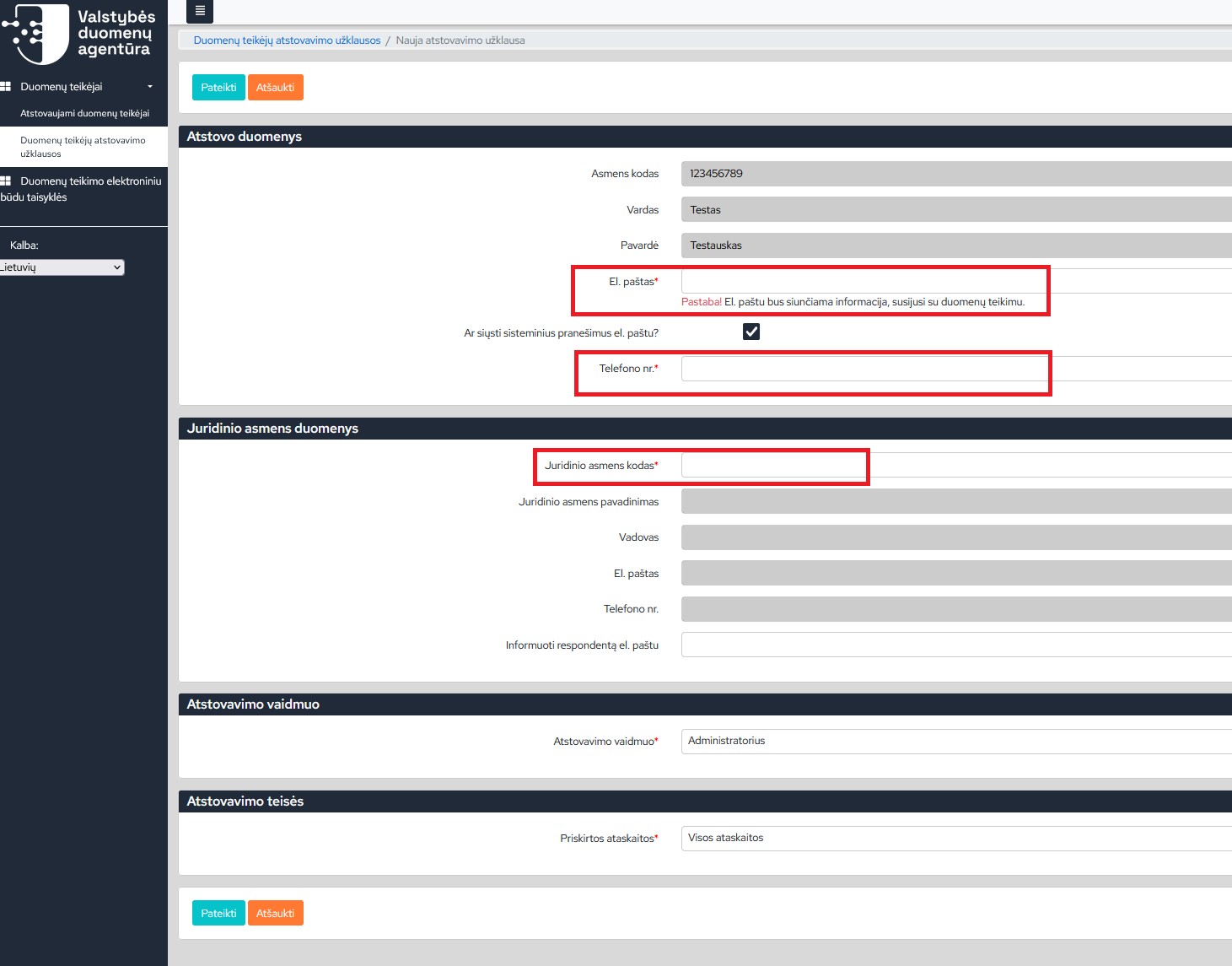
Figure 5. Window for submitting a new data provider representation request
In the opened window for submitting a new data provider representation request (Fig. 5), some of the fields (highlighted in gray) are inactive and cannot be adjusted. Filling in the fields marked with an asterisk is mandatory. When creating an account, the system automatically selects the representation role “Administrator” for you, which means that you would be granted all rights in the system equivalent to the rights of the head. If you think that you do not need this, you can change the representation role – select “Provider” or “Viewer”:
- Provider – can submit reports on behalf of the data provider, see their submission history, but cannot administer the accounts of a legal entity or its representatives.
- Viewer – can see the list of reports assigned to the data provider, the data provider’s settlement, but will not be able to submit reports for the represented data provider, nor will be able to administer the accounts of a legal entity or other representatives.
If you do not make a change, the system will grant you representation rights for all reports submitted by the data provider. However, if you are only responsible for submitting a certain report or reports in a certain area, change the option “All reports” to “Some reports” in the “Representation rights” section of the representation request – this will allow you to specify one or more reports for which you are responsible.
Important! If you are the only representative of the data provider, do not create a list of specific reports, leave the option “All reports” in the “Representation rights” section so that you can see the changed list of reports submitted by the data provider when the reference year changes.
When the fields in the representation request are filled in, click [Submit]. (Fig. 5)
The system will send an email notification that you have submitted a representation request and that it needs to be confirmed:
- To the email address (“Notify respondent by email”) that you specify in the “Respondent details” section of the representation request;
- The email address of the head of the legal entity to the email address displayed in the “Legal entity data” section of the representation request;
- To other representatives who, when representing the data provider, have the “Administrator” role in the e. Statistics system.
When one of the recipients approves your representation request, you will be informed about it by email notification.
Until your representation request is approved, its status is “Awaiting approval by the representative”.
4. Confirmation (or rejection) of the assigned respondent’s representation
When an account is created for you as a representative by the head of a legal entity, another administrator or an employee of the State Data Agency (according to the Consent Form), information on the completion of registration is sent to your email address specified in the representation account being created.
To view information about the assigned representation, you must log in to the e. Statistics system in one of the following ways:
- log in through the Electronic Government Gateway by entering the data required for identification;
- log in with a password.
The assigned representation review window opens (Figure 6).
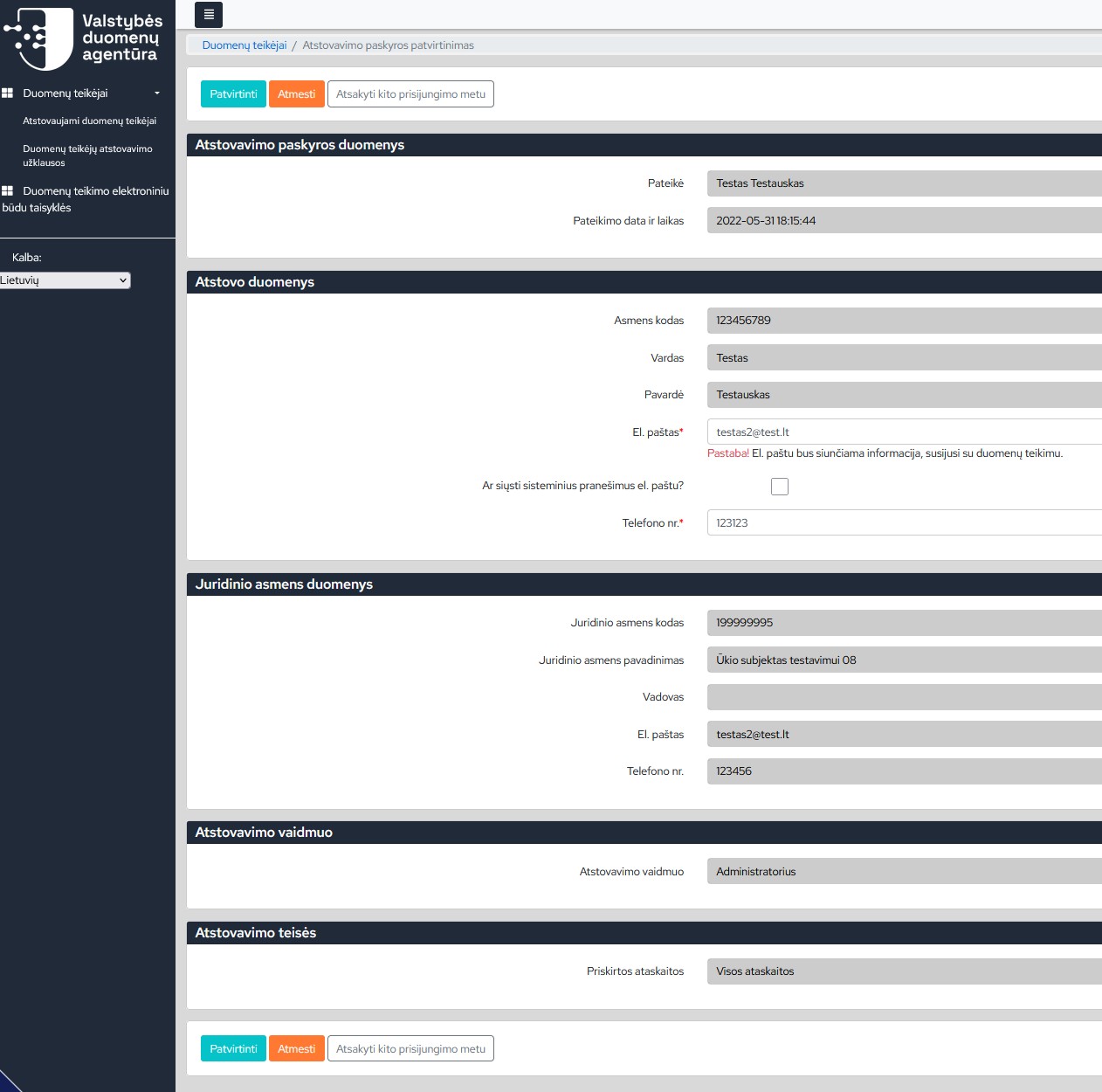
Figure 6. Assigned Representation Preview Window
If this is the legal entity you are working with, select [Confirm]. If for some reason you do not want to represent the assigned data provider, click [Reject]. If you cannot make a decision immediately, the [Reply during next login] option will allow you to make a decision later, and the status of the representation account will remain unchanged.
At the time you approve or reject the representation account, the system will send a notification about your action to the email addresses of the head and other designated administrator(s).
5. Suspending your representation to the respondent and adjusting account data
Even if you only have the rights of a report provider or a reviewer when representing a data provider, if necessary, when the employment relationship is terminated, the service contract expires or other circumstances arise, you can suspend your representation account yourself (Figure 7). You can do this by the following steps:
1. Log in to the e. Statistics system in one of the following ways:
- log in through the Electronic Government Gateway by entering the data required for identification;
- log in with a password.
2. Select the required data provider.
3. Click [Administration]-> [My representation data]
4. Use the buttons:
- [Stop representation] – you will suspend your representation for this data provider.
- [Edit] – you will be able to specify those data fields of your account that can be adjusted.
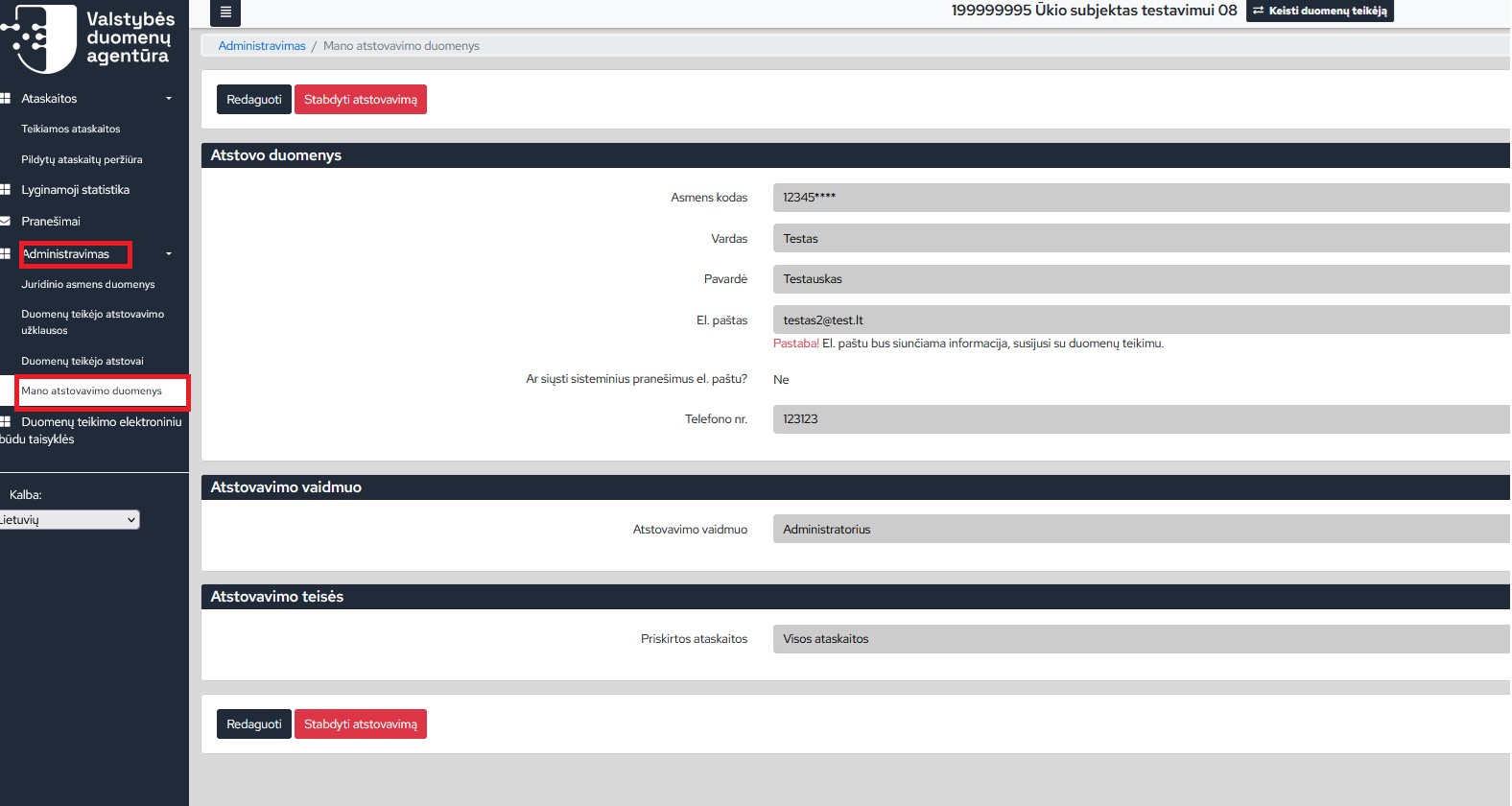
Figure 7. Data provider representation account window
Last updated: 26-02-2026